Connect to Databricks
Open Plugins → Databricks DBSQL Connector → Connect to Databricks SQL (or click the Databricks toolbar icon).
Find your connection details in Databricks
- In your Databricks workspace, open SQL Warehouses and pick a warehouse (serverless recommended).
- Open the Connection details tab and copy:
- Server hostname, e.g.
your-workspace.cloud.databricks.com - HTTP path, e.g.
/sql/1.0/warehouses/1234567890abcdef
- Server hostname, e.g.
Choose how to sign in
| OAuth (browser login / SSO) (recommended) | Personal Access Token | |
|---|---|---|
| What you need | Your normal Databricks login, including SSO | A token from Databricks (starts with dapi) |
| Token stored on your computer? | A refreshable sign-in, in a private file in your QGIS profile | The token, in your QGIS settings |
| Works for Genie Agent and Genie One | Yes | Yes |
| Best for | Everyday use; sharing projects with colleagues | Automation, or workspaces without OAuth |
OAuth: sign in through your browser
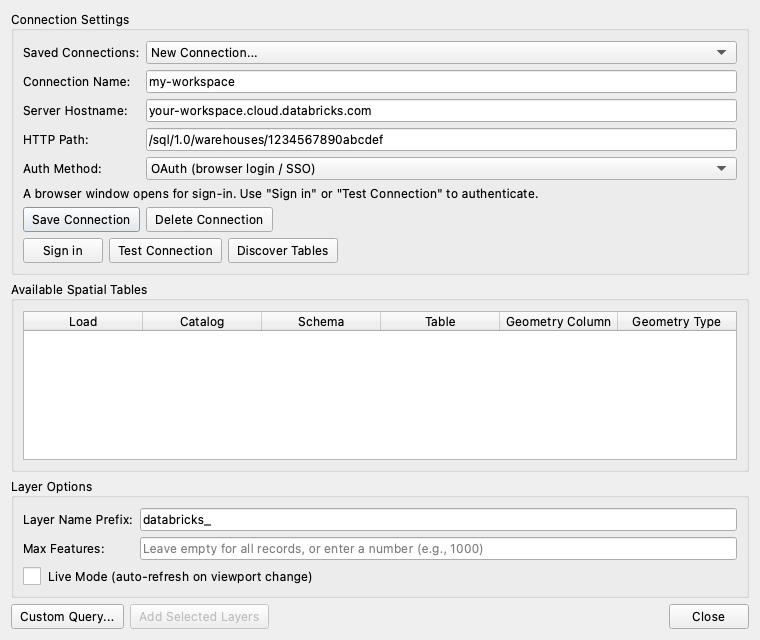
- Connection Name: something you'll recognise, e.g.
my-workspace. - Server Hostname and HTTP Path: paste from Databricks.
- Auth Method: OAuth (browser login / SSO). The token field disappears and a Sign in button appears.
- Click Sign in. A browser tab opens; sign in as usual (with SSO if your company uses it). If you're already signed in, it completes by itself.
- Back in QGIS you'll see "Signed in to Databricks successfully."
- Click Save Connection.
You only sign in once. The plugin refreshes the sign-in automatically, and the same session is used for table discovery, layers, live layers, the Browser panel and Genie.
Personal access token
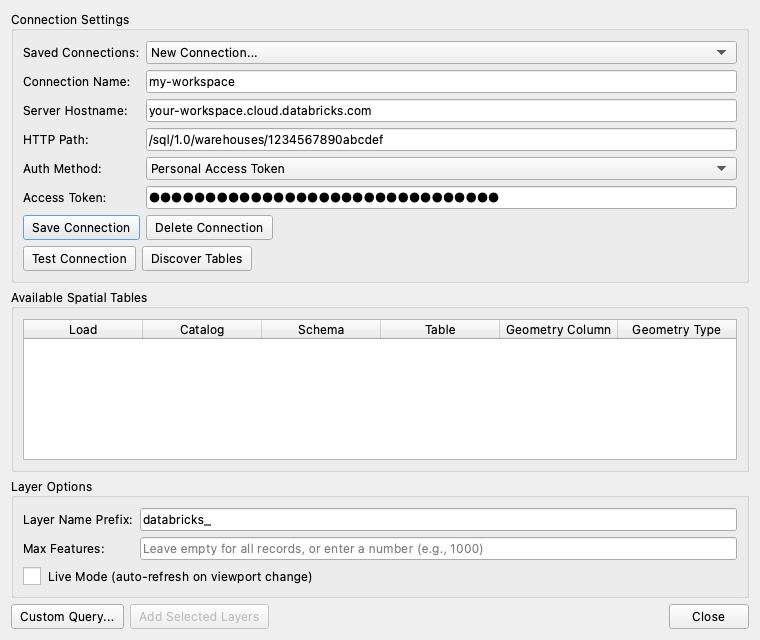
- In Databricks: Settings → Developer → Access tokens → Generate new token. Copy it.
- In the dialog, fill in Connection Name, Server Hostname and HTTP Path.
- Auth Method: Personal Access Token, then paste the token into Access Token.
- Click Save Connection.
Test the connection
Click Test Connection. You should see "Connection successful!". If not, see Troubleshooting.
Lakehouse Real-Time warehouses
Real-Time SQL warehouses connect through the Databricks SQL kernel, a small add-on to databricks-sql-connector. The first time you Sign in, Test Connection, Discover Tables or expand the connection in the Browser panel, the plugin offers to add it:
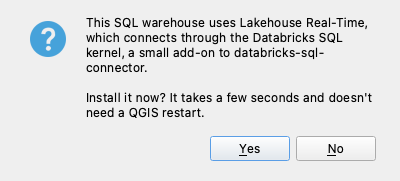
Click Yes and wait a few seconds for "The Databricks SQL kernel is installed", then try again. No restart is needed. From then on every feature works as on a standard warehouse, and with OAuth one sign-in covers everything.
Saved connections
- Saved Connections at the top lists your connections; pick one to load it.
- Save Connection saves changes; Delete Connection removes the selected one.
- Saved connections are shared by the main dialog, the Browser panel, Genie Agent and Genie One.
- Layers you save in a project refer to the connection by name. Keep the name stable, and colleagues opening your project should use the same name.
Next
Click Discover Tables to find spatial tables: see Load spatial tables.