Databricks DBSQL Connector for QGIS: User Guide
Load spatial data from Databricks into QGIS, keep SQL queries live in your projects, and ask Databricks Genie about your data, all from inside QGIS.
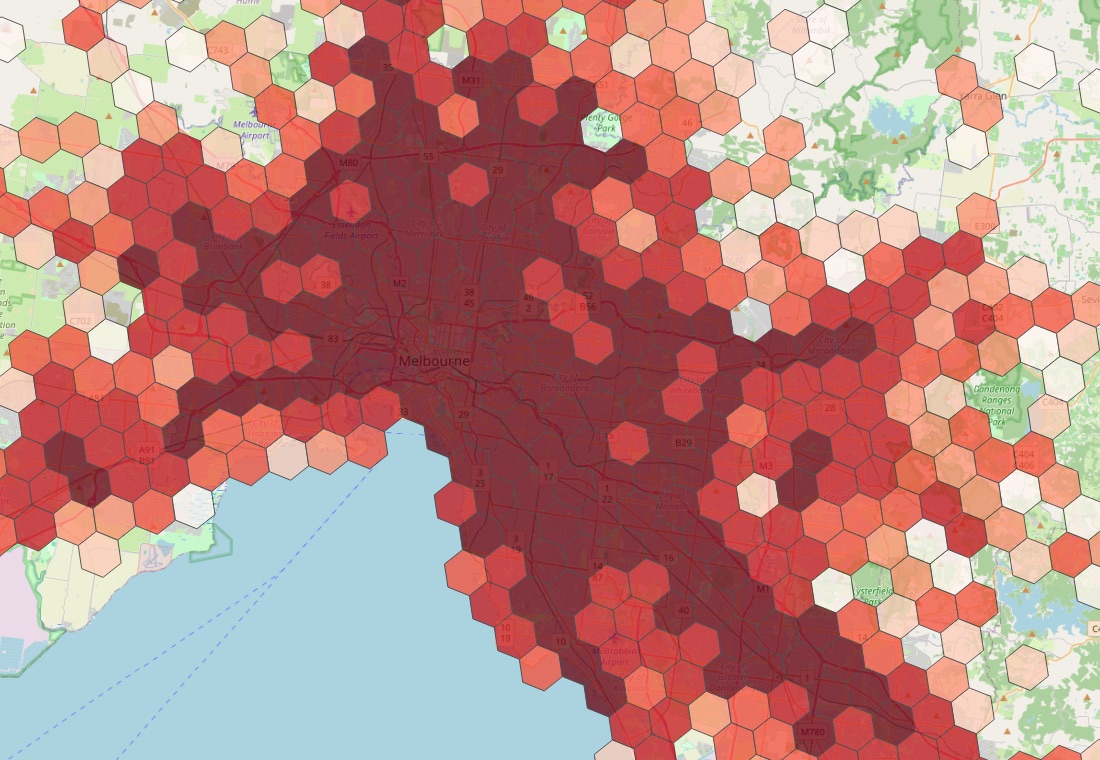 A Databricks SQL query saved in a QGIS project: Victorian road-crash hotspots (H3 cells) over an OpenStreetMap basemap. Basemap © OpenStreetMap contributors.
Start here
Working with your data
Reference
| Guide |
Covers |
| Security and privacy |
Where credentials are stored, what goes into project files, and sharing projects safely |
| Troubleshooting |
Install, sign-in, Genie and layer problems, and where to find the logs |
At a glance
| Feature |
Where to find it |
| Main dialog (connections, tables, Custom Query) |
Plugins → Databricks DBSQL Connector → Connect to Databricks SQL, or the Databricks toolbar icon |
| Genie Agent |
Plugins → Databricks DBSQL Connector → Databricks Genie Agent |
| Genie One |
Plugins → Databricks DBSQL Connector → Databricks Genie One, or the Genie lamp on the toolbar |
| Explain this Map |
Plugins → Databricks DBSQL Connector → Explain this Map, or the red map-with-sparkle toolbar icon |
| Re-load a layer's data |
Select the layer, then Plugins → Databricks DBSQL Connector → Update Layer Data from Databricks |
| Live mode on or off |
Select the layer, then Plugins → Databricks DBSQL Connector → Toggle Live Mode for Layer |
| Browser |
Browser panel → Databricks |
Requirements
- QGIS 3.16 or later, or QGIS 4.x. Tested on QGIS 3.44 (Qt5) and QGIS 4.2 (Qt6).
- A Databricks SQL warehouse (serverless recommended) with Unity Catalog.
- Tables with
GEOMETRY or GEOGRAPHY columns, or queries that build geometry, e.g. ST_POINT(longitude, latitude, 4326).
- For Genie: access to a Genie Agent (Genie Agent dialog) or to Genie One (Genie One dialog).